
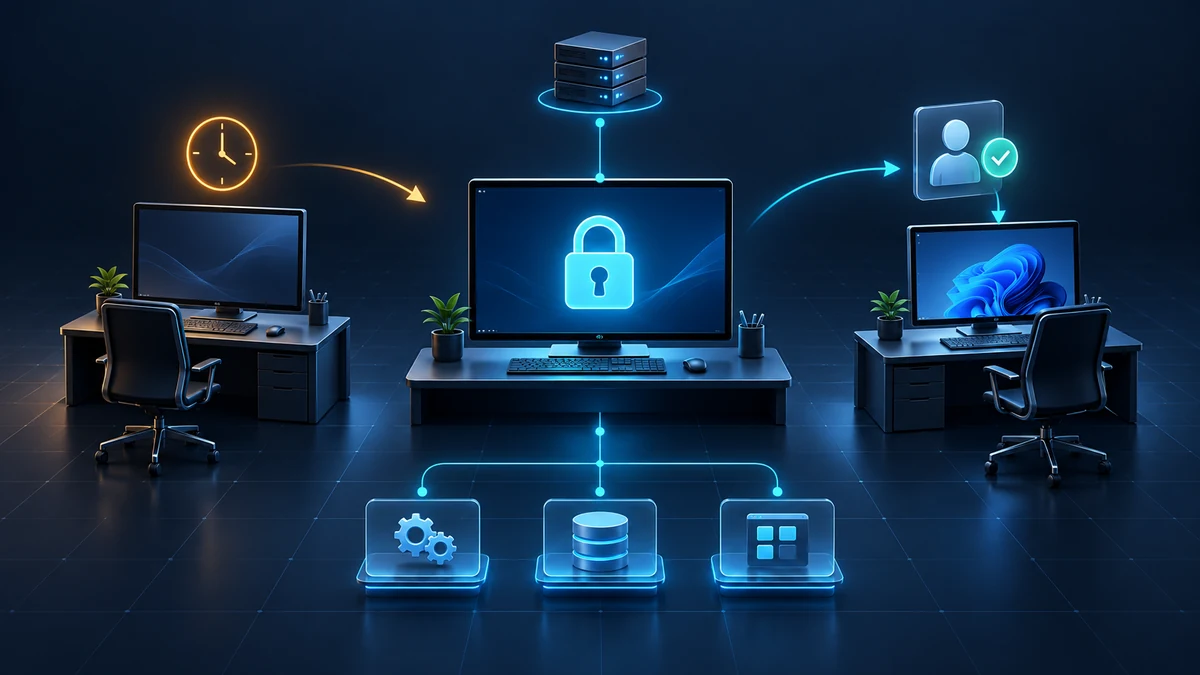
The user leaves, but the session stays open
An employee leaves their desk to ask a colleague a question. A customer portal and an administrative remote support session remain open. After a few minutes, the display goes dark. Nobody knows whether Windows actually locks: the power plan, screen saver and older user policies were configured separately.
For someone with access to the device, an open session already provides usable access. They need neither the AD password nor a fresh sign-in. Protecting interactive sessions therefore belongs in the client baseline of an AD environment, even though Windows performs the actual locking locally.
This article covers domain-joined Windows workstations. It complements restrictions on local server logon rights: the concern here is protecting an authorised session. Domain controllers, RDS session hosts, kiosks and production control systems need separate requirements. A workstation policy should not flow down to those systems without assessment.
Define a baseline for each workstation class
The target combines three properties: unattended sessions lock after an agreed interval, returning to the desktop requires authentication, and the sign-in interface exposes as little identity information as practical. Manually locking with Windows+L remains part of everyday practice; automatic locking catches omissions.
Choose intervals based on location and workflow. Ten minutes for ordinary office devices and five minutes for administrative workstations are possible starting points for a project. They are pilot values, not a universal security standard. Reception areas may need shorter intervals. Extended reading, assistive technology and supervised displays require their own assessment.
For each device class, document an owner, a lock interval, the expected behaviour after sleep and permitted exceptions. An exception records the affected devices, justification, compensating controls and expiry date. Permanently excluding an entire department is not a defensible exception process.
Set the inactivity limit as a computer policy
Create a dedicated GPO for the pilot OU. Under Computer Configuration > Policies > Windows Settings > Security Settings > Local Policies > Security Options, set Interactive logon: Machine inactivity limit in seconds, for example 600 for ten minutes. 0 disables this policy; other locking controls can still apply.
Include an enabled screen saver and a restart in the rollout. With the inactivity limit configured, screen saver activation or power-driven display shutdown can lock earlier. Test their interaction on the target device rather than accepting the configured number alone.
For users, also enable Enable screen saver and Password protect the screen saver under User Configuration > Policies > Administrative Templates > Control Panel > Personalization. If you centrally configure Screen saver timeout, align its value in seconds with the device design. Where necessary, use Force specific screen saver to select an approved, existing Windows screen saver; do not distribute downloaded SCR files or an unverified path.
Regardless of how it is managed, verify that a valid screen saver is selected and an effective timeout greater than zero is configured.
The user settings must reach the actual user. A GPO containing user settings and linked only to a computer OU does not automatically achieve that without appropriate processing. Check the user OU, filtering and any deliberately configured loopback processing. Enabling loopback just for locking, without understanding its effects on other user policies, creates additional failure modes.
Configure the sign-in prompt deliberately
In the same Security Options section, set Interactive logon: Do not require CTRL+ALT+DEL to Disabled where the workstation class should use the secure attention sequence. The double negative matters: Enabled removes the requirement. Test the actual credential providers, smart cards and accessibility tools in use. The sequence supports a trusted sign-in path; it does not replace MFA or protect a device that is already compromised.
Also set Interactive logon: Don't display last signed-in to Enabled. The sign-in screen then avoids automatically presenting the previous user. Do not blindly carry forward old settings for Interactive logon: Display user information when the session is locked: the Do not display user information option has not been supported in its earlier form since Windows 10 version 1607. Test sign-in and the locked desktop separately with the deployed authentication methods; the first view does not prove how the second behaves.
Hiding the identity makes casual observation of account names at the device harder. It does not prevent directory queries or make known identities secret. Shared workstations also need clear guidance on the correct sign-in format, so that additional typing does not create unnecessary failed attempts.
Waking from sleep must not expose the desktop
Under Computer Configuration > Policies > Administrative Templates > System > Power Management > Sleep Settings, enable both Require a password when a computer wakes policies: plugged in and on battery. Test both power modes, closing the laptop lid and resuming from the sleep state the device actually uses.
The policy name says “password”. The approved method available on return depends on the sign-in design and credential providers. Therefore also test Windows Hello for Business or smart cards where deployed. Returning straight to an open session without authentication must not count as a successful unlock.
For devices managed through more than one platform, compare GPO and MDM settings. Each setting needs an identified management authority and a way to detect conflicts. A local registry value alone explains neither its source nor the visible result.
Accept the pilot against real workflows
Include at least an office desktop, a laptop on battery and an administrative workstation. Before changing anything, capture the applied computer and user policies with gpresult; store reports only in a protected project location because they can contain user, group and infrastructure information. Also back up the previous GPO configuration.
After policy processing and the planned restart, begin functional testing. Leave the device without input and measure the time until it actually locks. Test Windows+L, display shutdown, sleep, resume and successful unlocking. Repeat with another authorised user so that a coincidental local setting is not mistaken for consistent deployment.
Include longer meetings, presentations, video playback and assistive technology in the test plan. Establish which application and power states change the outcome. Record observed behaviour for each Windows version and device profile. Acceptance requires a target value, an effective policy and an observed result, rather than a screenshot of the Group Policy console.
Where the relevant auditing is enabled, Security events 4800 and 4801 can provide evidence of locking and unlocking. Without checking the audit configuration, missing events do not prove that locking failed. Limit access to and retention of personal sign-in information to operational needs.
Benefits: fewer exposed sessions and verifiable operation
Automatic locking shortens the window in which an unattended workstation remains directly usable. Central settings make behaviour repeatable and simplify acceptance testing for new devices. A defined authentication flow on return reduces differences between mains power, battery operation and user profiles.
Testing locking, identity display and resume separately prevents a dark monitor from creating a false sense of security. Device classes and time-limited exceptions make operational deviations visible instead of leaving them hidden in local settings.
Drawbacks and limits: locking does not end the session
Overly short intervals interrupt work and can encourage unproductive attempts to avoid the control. Additional typing particularly affects shared devices and users with accessibility requirements. Planning, communication and available support therefore belong in the rollout; the shortest technically possible interval is not automatically the most sustainable one.
A lock does not sign the user out. Processes continue to run, and locking does not reliably remove authentication material from memory. Remote support software and external application sessions also need their own permissions and time limits. Client locking replaces neither BitLocker and physical access protection nor Credential Guard, strong authentication or server controls.
If the change causes a fault, restore the specific settings to their documented previous state through a controlled rollback. Not configured is not a reliable blanket reset for every security option; configured values can persist. After rollback, recheck the effective policy and sign-in behaviour. For individual special-purpose devices, a time-limited exception is preferable to disabling the entire client baseline.
Project checklist before release
- Workstation classes, owners and justified lock intervals agreed.
- Servers, RDS, kiosks and production devices separated from the client pilot.
- Dedicated GPO, backed-up previous settings and limited pilot OU available.
- Computer and user policies reach the intended devices and accounts.
- Inactivity limit, screen saver and display shutdown tested together.
- Restart, sign-in and unlocking tested with the actual credential providers.
- Resume requires authentication on both mains power and battery.
- Identity display accepted separately for sign-in and a locked session.
- Workflows, assistive technology, support and exceptions addressed.
- Evidence of effectiveness, rollback and recurring verification documented.