
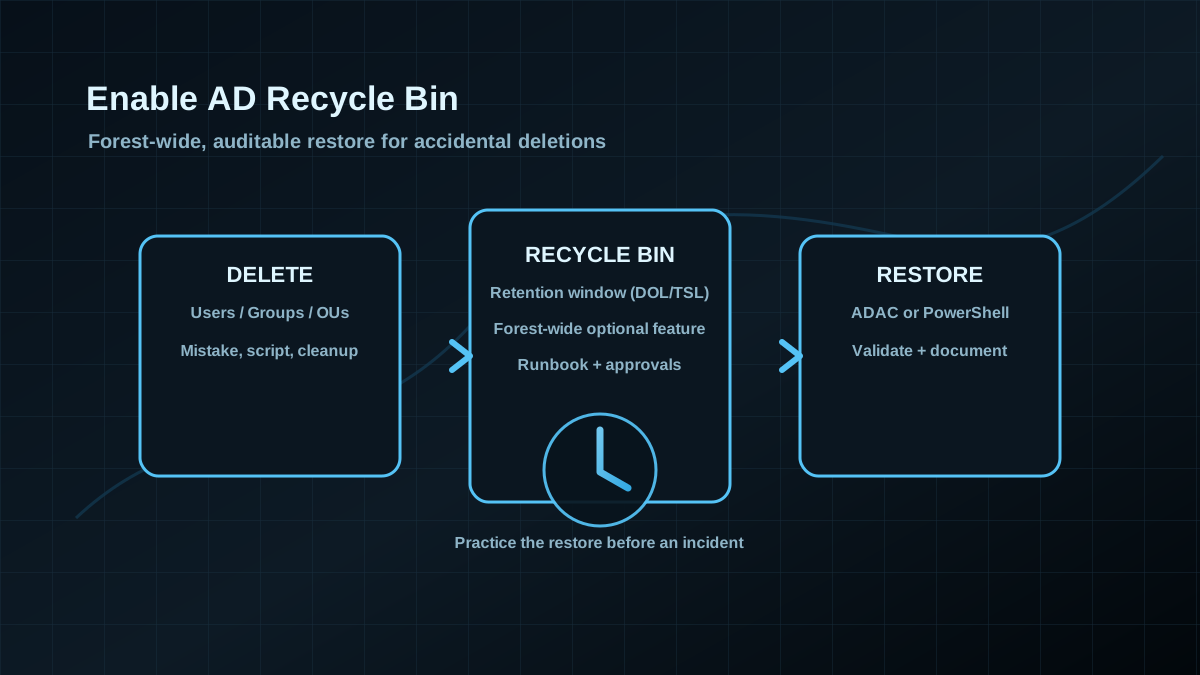
Starting point: accidental deletions happen — and usually waste too much time
In real AD environments it’s not a question of *if* but *when*: an admin cleans up “quickly”, a script runs against the wrong OU, delegations are too broad, or a change is rushed. Outcomes are predictable:
- User/computer accounts disappear (including group memberships, attributes, and permission references).
- Entire OUs are deleted, breaking delegation and policy structure.
- Teams fall back to “restore from backup” — slow, risky, and full of side effects.
The AD Recycle Bin is not a “nice to have”. It’s operations hardening: it reduces the blast radius of human error and makes recovery more controlled.
Target state: Recycle Bin enabled, restore practiced, retention decided on purpose
A good target state is more than “we turned it on”:
- AD Recycle Bin is enabled forest-wide (deliberately, documented, approved).
- A restore process exists (who can restore, how to validate, how to document).
- Retention is a deliberate decision (not just defaults/inheritance).
- Monitoring/logging exists: deletions are visible, restores are traceable.
- Backups remain mandatory: Recycle Bin complements backups — it does not replace them.
Important: enabling it is effectively a one-way decision. Treat it like a small forest change, not a “quick toggle”.
Prerequisites and decision points (before flipping the switch)
Forest functional level and legacy baggage
The AD Recycle Bin requires a Forest Functional Level of at least Windows Server 2008 R2. In practice the hard part is often not versioning, but legacy issues:
- old DCs/RODCs in remote sites
- replication health problems
- undocumented identity/provisioning dependencies
Make sure replication is healthy first. A shaky directory turns any forest-wide option into unnecessary risk.
Retention: what you actually get
Recycle Bin does not mean “forever”. Recoverability depends on AD lifetimes (including *Deleted Object Lifetime* / *Tombstone Lifetime*). This is a design choice:
- too short → restore window doesn’t match real operations
- too long → more data retention/replication load and longer traces of “stale” objects
If you’re hardening: decide intentionally and document the rationale (incident window, change cycles, audit needs).
Implementation: enable (controlled) and restore (usable)
1) Pre-checks (functional level + replication health)
Minimal checks before enabling:
# Forest functional level
Get-ADForest | Select-Object ForestMode

# Replication/directory health (examples)
repadmin /replsummary
dcdiag /q
If you already see warnings: stabilize first, enable later.
2) Enable the Recycle Bin (PowerShell)
The feature is enabled forest-wide as an optional feature:
Enable-ADOptionalFeature `
  -Identity 'Recycle Bin Feature' `
  -Scope ForestOrConfigurationSet `
  -Target (Get-ADForest).RootDomain
Then wait for replication and verify:
Get-ADOptionalFeature -Filter "Name -like 'Recycle Bin*'" | Select-Object Name, EnabledScopesOperationally: do it in a change window and communicate clearly that this is not something you casually roll back.
3) Practice restores (GUI/ADAC or PowerShell) — before you need it
The biggest value is only realized if the team can reliably execute the restore workflow.
Example: find deleted objects and restore them:
# Search deleted objects (adjust filter)
Get-ADObject -IncludeDeletedObjects -Filter "Name -like '*test*'" `
  -Properties whenChanged, isDeleted, lastKnownParent |
  Select-Object Name, ObjectClass, whenChanged, lastKnownParent

# Restore by DistinguishedName (example)
Get-ADObject -IncludeDeletedObjects -Filter "Name -eq 'test-user'" | Restore-ADObject
Practical tip: maintain a short restore runbook (object class, target OU, naming conflicts, group memberships, downstream systems like M365/HR).
Benefits (concrete) — and why this is hardening
- Faster recovery without heavy backup-restore procedures.
- Fewer side effects than many backup-based approaches (no rollback of broad state slices).
- Better attribute/link retention compared to very old reanimation approaches.
- Improved auditability: restores become a defined, repeatable process.
Downsides and limits (explicit)
- Effectively irreversible: enabling it is a deliberate forest decision.
- Not a backup replacement: once the restore window is gone (or damage is larger), backups are still required.
- More data retention: depending on retention, the AD database grows and replication traffic can increase (usually manageable, but measurable).
- Restore isn’t “automatically clean”: naming conflicts, dependencies, and downstream systems must be handled in the workflow.
Common pitfalls seen in projects
- “It’s enabled, so we’re safe.” — without a runbook and practice it’s theory only.
- Ignoring functional-level/legacy DC baggage — the change turns into a troubleshooting project.
- Never deciding retention — the restore window doesn’t fit reality.
- Over-broad delegation — restore permissions spread to too many admins.
- Forgetting downstream systems — identity workflows must handle restore events cleanly.
Project checklist (short and actionable)
- Inventory ForestMode + DC landscape (including remote sites/RODCs).
- Get replication/directory health to a stable green state.
- Decide retention/restore window + logging requirements.
- Plan the change: enablement, communication, verification, roll-forward plan.
- Define the role model: who can delete, who can restore, who approves.
- Write a runbook and execute a restore test (user, group, OU as test cases).
- Extend monitoring: deletion events, restore actions, unusual spikes.